No-ICE: The De-Icing Hold-Over Time App for Professional Pilots

Winter operations demand precision. When de-icing fluid is applied to an aircraft, the clock starts ticking — and every pilot needs to know exactly how much hold-over time (HOT) remains before protection expires. No-ICE is a new iOS app built specifically for professional pilots who need fast, reliable access to deicing hold-over time tables from the FAA and Transport Canada (TCA), combined with a precision timer that tracks every second in real time.

Available now on the App Store, No-ICE removes the complexity from hold-over time management during cold weather operations — no manuals, no guesswork.

Download No-ICE on the App Store

Why Hold-Over Time Matters for Flight Safety

Hold-over time is the estimated period during which a de-icing or anti-ice fluid remains effective after application. Exceeding it means ice can re-form on critical aircraft surfaces — wings, stabilizers, control surfaces — compromising safety during taxi and takeoff.

Pilots operating in winter conditions must constantly reference HOT tables, cross-referencing fluid type, outside air temperature, and precipitation type. Doing this manually under time pressure, often in challenging conditions, introduces risk. That is the problem No-ICE was designed to solve.

Official FAA and Transport Canada Data

No-ICE provides direct access to hold-over time tables from two authoritative sources:

  • FAA — Federal Aviation Administration holdover time guidelines
  • TCA — Transport Canada de-icing standards

The app covers Type I, Type II, Type III, and Type IV de-icing and anti-ice fluids, across all relevant weather conditions:

  • Snow (all intensities)
  • Freezing rain
  • Freezing drizzle
  • Frost

Multiple fluid concentrations and temperature ranges are supported, giving pilots the same data they would find in official publications — but accessible in seconds.

Precision Timer with Real-Time Tracking

At the heart of No-ICE is a purpose-built timer designed for the cockpit workflow:

  • One-tap start, pause, and resume — no fumbling with complex interfaces
  • Elapsed time display with UTC/Zulu start time for operational logging
  • Assured time (green zone) and Limit time (orange zone) calculated and displayed in real time
  • Automatic flaps/slats factor — when flaps are extended, hold-over time is reduced by the standard 0.76 factor, applied automatically
  • Haptic feedback for eyes-free operation during high-workload phases

The timer is not just a countdown. It is an operational tool that gives pilots situational awareness of exactly where they stand relative to the assured and limit holdover time windows.

Live Activity and Dynamic Island

No-ICE takes full advantage of Apple is Live Activity and Dynamic Island features. Once the timer is running, pilots can monitor hold-over time directly from the iPhone lock screen — without opening the app.

  • Visual progress bar with color-coded assured (green) and limit (orange) zones
  • Full red indicator when hold-over time has been exceeded
  • Dynamic Island integration for at-a-glance status

This is particularly valuable during taxi operations, when the phone may be mounted or stowed but the lock screen remains visible.

Built for the Cockpit

No-ICE was designed with the operational environment in mind:

  • Celsius and Fahrenheit support — switch based on your operational region
  • Persistent state restoration — the app recovers its state after interruptions or restarts
  • iPhone and iPad compatible
  • Lightweight — only 8 MB, fast to load, no unnecessary overhead

Whether you are flying short-haul routes in northern Europe, crossing the Canadian prairies, or operating out of airports in the US northeast, No-ICE provides the de-icing data you need, when you need it.

Who Is No-ICE For?

No-ICE is built for professional pilots — airline, cargo, business aviation, and anyone operating aircraft in winter weather conditions. If you reference holdover time tables as part of your standard operating procedures, this pilot app replaces the manual lookup with a faster, more reliable digital workflow.

It is equally useful for dispatchers, ground crew coordinators, and training departments looking for a clear, visual reference tool for de-icing hold-over times.

Get No-ICE Today

No-ICE is available now on the App Store for iPhone and iPad, priced at just 2.99 EUR.

Download No-ICE from the App Store

Built by FEEL.AERO — aviation technology solutions for the modern cockpit.

‼️Aviation Security: Why your airline shouldn’t use self signed certificates

To make it short, and beyond basic IT related reasons, because IT security for an airline is directly linked to Aviation security and passengers safety.

What are the risks associated with self-signed certificates? Mainly:
• Leave the door open for various attacks, intercepting or corrupting information
• Train users to be less securelock

Here is a bit of reading about it:
https://en.wikipedia.org/wiki/Self-signed_certificate
or Google about «risk self signed certificate»

There are multiple ways to skin a cat, so let’s focus on one of them applied to Windows running Wildfly, «free», easy to implement, using automatic renewal. Here are some few steps which will put your operation back to an acceptable level of security using Let’s encrypt free SSL/TLS certificates

Note that the self-signed certificate is just one aspect among others, and if you skipped this one, it would be very wise to discuss privately about some other potential vulnerability aspects. Contact us directly in private: contact@feel.aero

Here are some few steps that you should pass to your EFB admin or IT department.

Download the binary build of letsencrypt for Windows there:
https://www.win-acme.com/
At this time, the latest version is 2.1.12 64bits (Upper banner link)

Unzip and move the folder under C:\Program Files\win-acme

Modify or replace the Script\ImportJKS.ps1 by:
• Specifying the correct java path for your installation
Set-Alias keytool "C:\Program Files\Java\jre1.8.0_181\bin\keytool.exe"
• Add -deststoretype pkcs12 to both keytool calls

I left the default password ‘airbus’ for the keystore unchanged to ease the setup, but it’s a good practice to change it based on the documentation, as well as the default port 8443, subject to frequent scans.

Place the attached script in the win-acme folder. It stops the Wildfly service, moves the .jks, creates or renews the certificate, and starts the service again

The first launch has to be executed manually «as an administrator» because it’s interactive. Accept all options.

Finally, go to modify in «task scheduler» the task which was generated:
• Set the trigger to 60 days instead of 1, as recommended by letsencrypt (Certificates are valid for 90 days)
• Change the action to launch C:\Program Files\win-acme\cert-fsa.bat (Starts in C:\Program Files\win-acme\)

cert-fsa.bat

@echo off

set HOST=fsa.yourdomain.com
set KEYSTORE=C:\Airbus\Wildfly\standalone\configuration\fsa-keystore.jks
set KEYSTOREPASS=airbus

sc stop wildfly

:loop
sc query wildfly | find "STOPPED"
if errorlevel 1 (
  timeout 1
  goto loop
)

move /Y %KEYSTORE% %KEYSTORE%.old

wacs.exe ^
    --target manual ^
    --host %HOST% ^
    --store none ^
    --installation script ^
    --script "Scripts\ImportJKS.ps1" ^
    --scriptparameters "\"{CacheFile}\" \"{CachePassword}\" \"%KEYSTORE%\" %KEYSTOREPASS% %KEYSTOREPASS%"

if not exist %KEYSTORE% (
    move /Y %KEYSTORE%.old %KEYSTORE%
)

sc start wildfly

Scripts/ImportJKS.ps1

param(
    [Parameter(Mandatory=$true)]
    [string]
    $PfxFile,
    
    [Parameter(Mandatory=$true)]
    [string]
    $PfxPassword,

    [Parameter(Mandatory=$true)]
    [string]
    $KeyStoreFile,

    [Parameter(Mandatory=$true)]
    [string]
    $KeyStorePassword,
    
    [Parameter(Mandatory=$false)]
    [string]
    $KeyStoreKeyPassword
)

Set-Alias keytool "C:\Program Files\Java\jre1.8.0_181\bin\keytool.exe"
echo "Keystore $KeyStorePassword"
if ([string]::IsNullOrEmpty($KeyStoreKeyPassword)) 
{
    keytool `
        -v `
        -noprompt `
        -importkeystore `
        -srckeystore "$PfxFile" `
        -srcstoretype PKCS12 `
        -srcstorepass "$PfxPassword" `
        -destkeystore "$KeyStoreFile" `
        -deststorepass "$KeyStorePassword" `
        -deststoretype pkcs12
} 
else 
{
    keytool `
        -v `
        -noprompt `
        -importkeystore `
        -srckeystore "$PfxFile" `
        -srcstoretype PKCS12 `
        -srcstorepass "$PfxPassword" `
        -destkeystore "$KeyStoreFile" `
        -deststorepass "$KeyStorePassword" `
        -destkeypass "$KeyStoreKeyPassword" `
        -deststoretype pkcs12
}

Visualize areas defined by coordinates in NOTAMs

We’re introducing today a new feature to our NOTAM and weather monitoring platform.

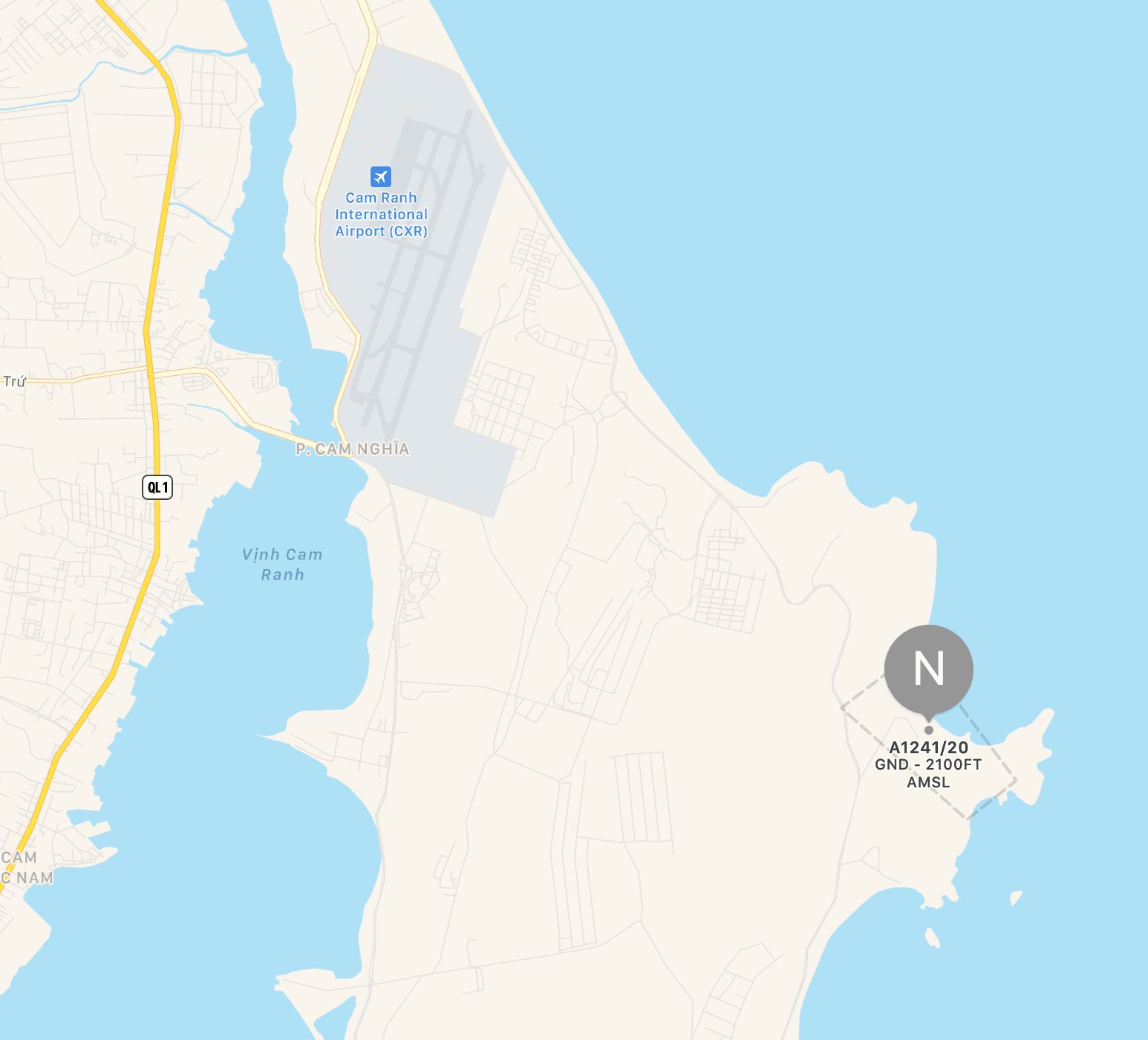
You’re probably pretty familiar with text NOTAMs like the one hereafter, but how many times have you been actually spotting on a map the area defined with coordinates?

🗺 NOTAMN VVTS A1241/20
W-[BO]/001NM FIR VVTS
[17]07:00 ↔️ [20]08:00
FRNG WILL TAKE PLACE WI:
115737N1091613E - 115650N1091649E - 115636N1091631E - 115716N1091545E
- 115737N1091613E
BRG: SE
- ALL FLIGHTS ARE PROHIBITED WITHIN THIS AREA.
- DURING THIS TIME, DEP/ARR ACFT IS NOT TEMPO OPERATED AT CAM RANH
INTL AP.
GND ↕️ 2100FT AMSL
⏱ 17 0700-0800 2330-2359 18 0000-0010 0040-0120 19 2330-2359 (RESERVE DAY) 20 0000-0010 0040-0120 0700-0800 (RESERVE DAY)
✨【DISPLAY ON MAP】

Our @blinkAeroBot  will display a map overlaying the region for you. You just have to click

https://t.me/blinkAeroBot